





Appearance settings
To change the theme in Aster Mail, go to Settings > Appearance > Appearance and select a theme card. Aster will save each change as soon as you make it.
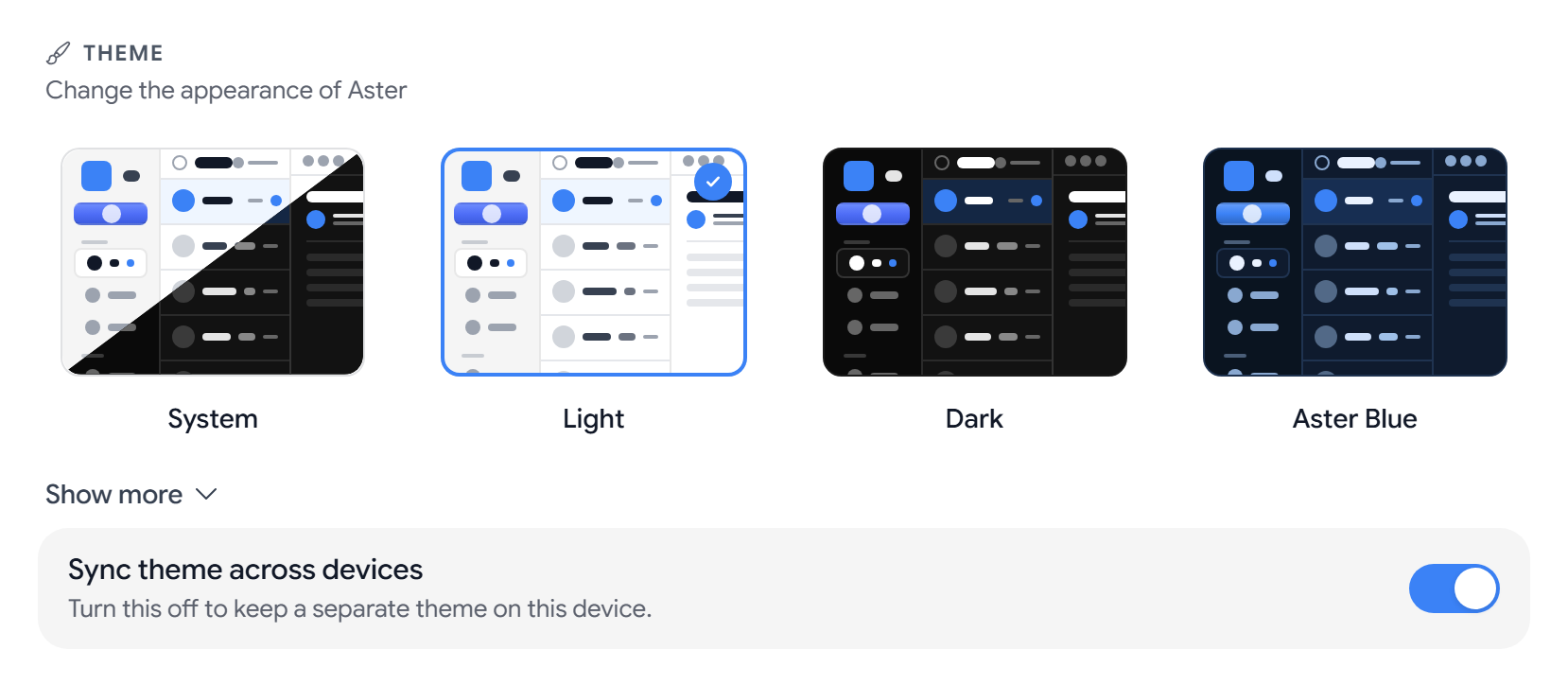
Change the theme
- System follows your device’s light or dark setting.
- Light and Dark use a light or a dark background.
- Aster Blue is a color theme.
- More colors. Select Show more to see Purple, Green, Rose, Orange, Teal, Indigo, Amber, Cyan, Slate, Lime, Fuchsia, Black, Emerald, and Pink.
Every color theme is a dark theme. If you pick one, Aster will switch the app to dark mode with that color as the accent. To go back to a light app, choose Light or System.
Sync theme across devices. This is on by default, so your theme follows your account to every browser and app. If you want a different theme on one device, turn it off on that device.
Create a custom theme
On a paid plan, you can build your own palette under Custom theme > Theme colors.
- Base color. Select the swatch and pick a color, and Aster will generate a full palette from it.
- Single colors. You can change Accent, Accent (hover), Background, Background (secondary), Text, Text (secondary), and Border one by one.
- Undoing a change. Select Reset to automatic next to a color, or Reset all to automatic.
If your plan changes to Free, the custom theme turns off and the app goes back to the default colors.
Change the font
- Font sets the font across the app. The default is Aster Default, and there are 18 others, such as Inter, Roboto, Merriweather, and JetBrains Mono.
- Email font sets the font that you read messages in. The default is Match app font.
Change the language, date format, and time zone
- Language sets the language of the app.
- Time format is 12-hour (1:30 PM) or 24-hour (13:30).
- Date Format is MM/DD/YYYY, DD/MM/YYYY, or YYYY-MM-DD.
- Time Zone is Automatic (device time zone) by default. You can search for a city or region, or select Show all time zones.
Choose how messages and the composer open
- Email view mode. Popup opens a message in a window over the list, Split view shows the list and the message side by side, and Full page replaces the list with the message.
- Density. Comfortable gives list items more space, and Compact fits more on screen.
- Compose window mode. Default - floating popup opens a small window that you can move aside, Always full screen opens the composer over the whole app, and Start minimized opens it collapsed at the bottom of the screen.